Triple Monitor Setup: Ergonomic Chair Positioning Guide
By Jamal Okoye • 13th Nov
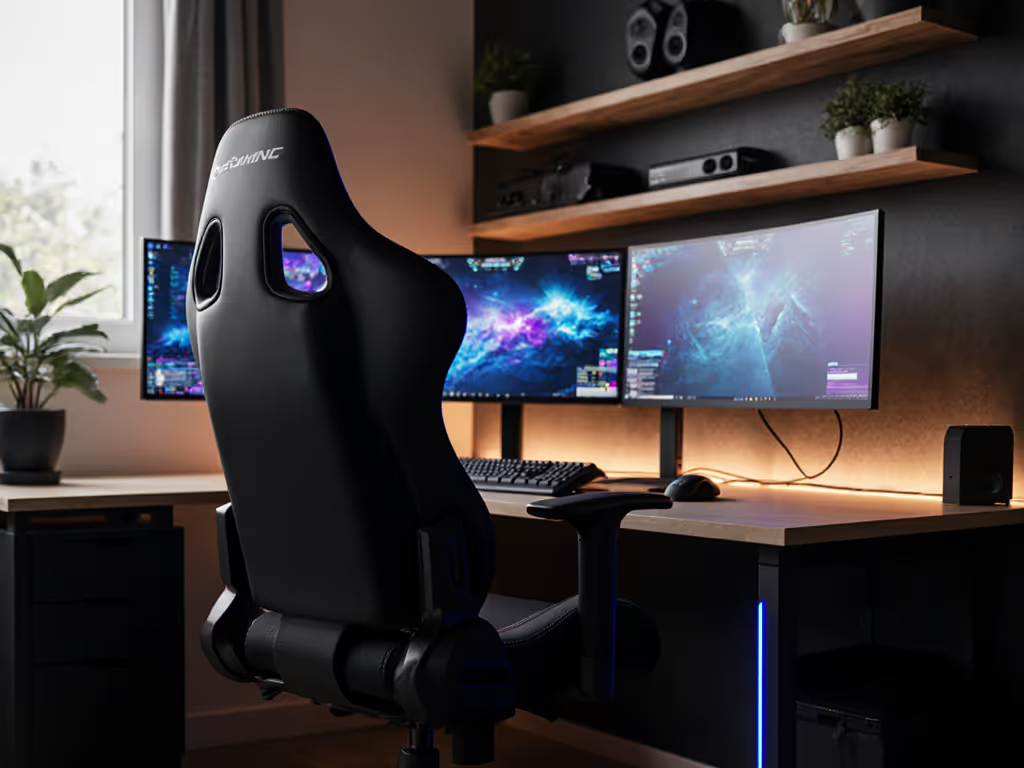
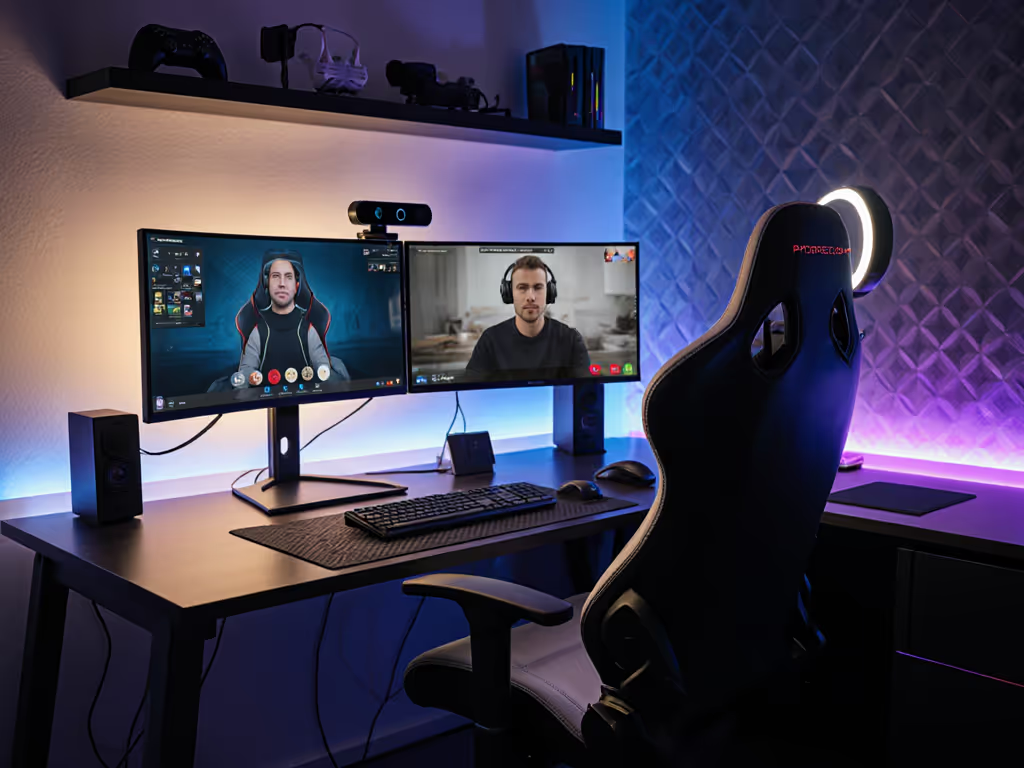
When building your multi-monitor gaming chair setup, most guides fixate on screen angles and distances, but overlook the foundation: your chair. An ergonomic chair for multiple monitors must actively support your body's natural movement across three screens. Without it, you'll wrestle with neck strain and fatigue before your first raid ends. As someone who used to swap cushions mid-session to ease numb legs, I learned this the hard way. Comfort isn't about fancy fabrics or RGB, it's measurable. Your inseam, shoulder breadth, and torso depth dictate where your chair must sit to unlock that seamless multi-screen flow. Fit beats flair, every time. For the science behind these measurements, see our spinal alignment guide.
Why Your Chair Makes or Breaks Triple Monitor Comfort
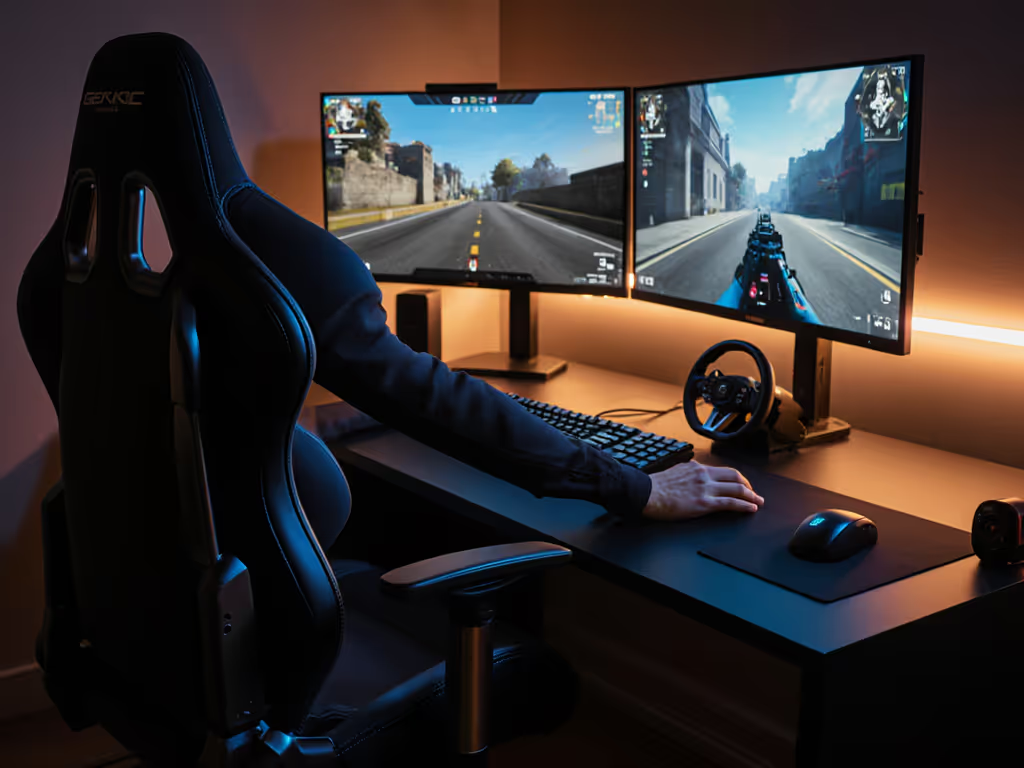
Triple monitors amplify subtle chair flaws. Glancing left or right should feel effortless, not like turning your whole spine. Yet 68% of gamers report neck pain after 2+ hours with multi-screen setups (per a 2024 ergonomic wearables study). Why? Because chairs designed for single screens can't pivot with your body's natural rotation. You end up reaching for secondary displays, not glancing. The fix starts with your pelvis and feet:
- Your hips anchor stability: If your seat depth is too long, you'll slide forward to see side screens, straining your lower back.
- Your feet ground movement: Without solid floor contact during swivels, you torque your knees to chase monitors.
- Your shoulders define your arc: Narrow seats force you to hunch inward; wide seats let you rotate freely within your natural shoulder breadth.
Start with your measurements; let specs narrow the field.
Step 1: Measure Your Body for Chair Dimensions
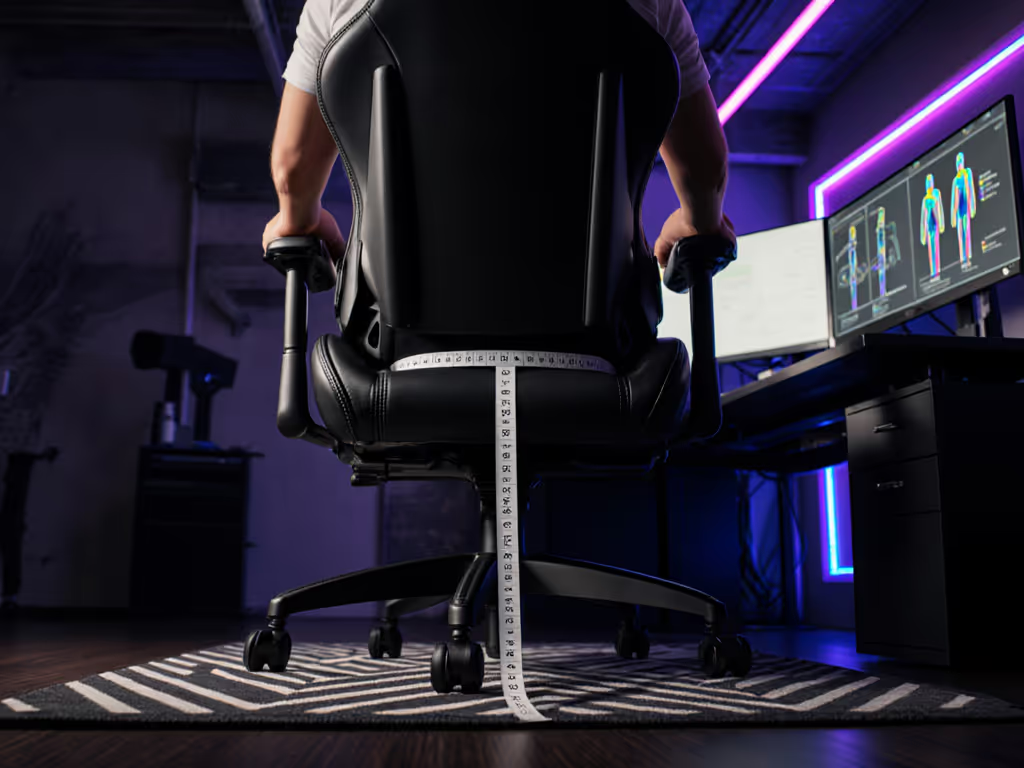
Forget "one-size-fits-all" claims. Triple monitors demand precision. Grab a tape measure and note these three non-negotiables:
Inseam & Thigh Length (For Seat Depth)
Sit on a hard surface, slide your hand under your thigh until it stops. Measure from wall to heel - this is your inseam. Now add 1-2 inches for clearance. Target seat depth range: Inseam + 1" to Inseam + 2". Example: 28" inseam = 29-30" seat depth. Too deep? You'll scoot forward, losing lumbar support. Too shallow? Thigh pressure cuts circulation during marathon sessions.
Shoulder Breadth (For Seat Width & Swivel Range)
Measure across your shoulders at collarbone height while seated. Target seat width: Shoulder breadth + 2-4". This lets you rotate 30-45 degrees per screen without brushing armrests. Crucially, check your chair's swivel range: 120° minimum for triple setups. Less than that? You'll twist your spine instead of pivoting smoothly.
Torso Height (For Backrest Alignment)
Measure from seat base to top of shoulders. Target backrest height: Torso height + 1-3". Your eyes should land at the top third of your center monitor when seated neutrally. Shorter backs leave your neck unsupported during side glances; taller backs let you recline into side screens without straining.
Step 2: Position Your Chair Within the Monitor Arc
Now align your chair to the screens. Forget "arm's length" rules, your body defines the sweet spot:
Find Your Pivot Center
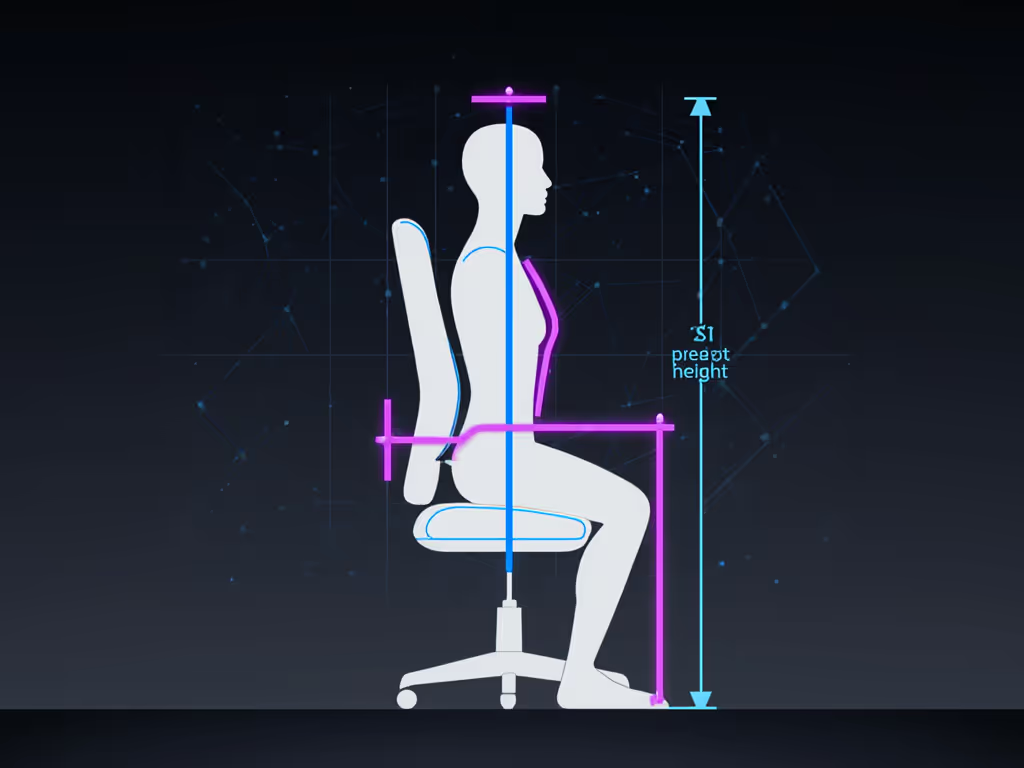
Place a sticky note on your center monitor where your eyes naturally rest. Sit in your chair. Adjust distance until that note aligns with your nose, not your eyes. Ideal distance: 1.5x your monitor height (e.g., 24" monitor = 36" from nose). Too close? You'll crane your neck. Too far? You'll lean forward, killing posture.
Set the Swivel Sweet Spot
With monitors angled 30 degrees inward (like a shallow U), adjust your chair's cylinder height until:
- Your eyes hit the top third of the center screen
- Your shoulders rest within the seat width (no squeezing!)
- Your knees bend at 90-110° with feet flat
Now rock gently left/right. Can you see the entire side screens without losing back support? If not, your seat depth is wrong (or your chair's swivel range is too limited). To understand how base design and center of gravity affect smooth pivots, see our gaming chair stability guide. The noblechairs HERO series, for example, offers 120° rotation and adjustable depth to accommodate broader movement arcs without compromising lumbar contact.
Optimize for Wide Field of View Ergonomics
Gaming's fast motion demands a different posture than office work. Lower your chair 1-2" below neutral position. This drops your center of gravity, letting you lean forward aggressively during FPS sessions while keeping your back against the chair. Paired with a rounded seat front (to avoid thigh pressure), this creates stable "aim posture" without numbing legs. But don't stay forward-leaning for hours, revert to neutral for recovery phases in RPGs or strategy games. See how proper chair setup can boost reaction time.
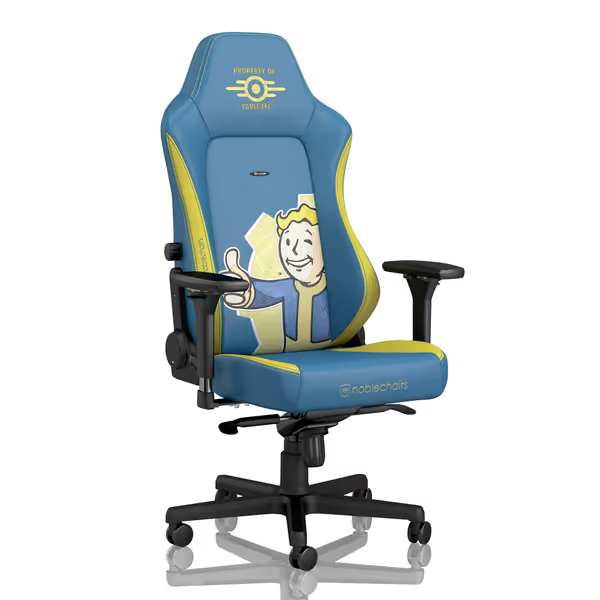
noblechairs Hero Fallout Vault-Tec Edition
Ergonomic gaming chair for long sessions, blending comfort with a unique aesthetic.
$659
Max Weight Capacity330 lbs
Max Weight Capacity330 lbs
Pros
Adjustable lumbar support reduces back pain.
Robust build quality for long-session comfort.
Cons
Seat cushion firmness is mixed for users.
Customers find the gaming chair well-made, comfortable, and easy to assemble with clear instructions. The lumbar support receives positive feedback, with one customer noting how it hugs the spine, while the armrests are adjustable in multiple directions.
Customers find the gaming chair well-made, comfortable, and easy to assemble with clear instructions. The lumbar support receives positive feedback, with one customer noting how it hugs the spine, while the armrests are adjustable in multiple directions.
Step 3: Validate Your Multi-Screen Posture
Don't guess, test. These checks take 60 seconds but prevent hours of discomfort:
The Glance Test
Set a timer for 5 minutes. Work normally across all screens. When it rings, freeze. Check:
- Neck: Is your chin parallel to the floor? Nodding yes = strain.
- Shoulders: Are they relaxed near your ribs? Shrugged = too far from screens.
- Thighs: Do you feel pressure under knees? Seat's too deep or shallow.
The 90-Degree Rule
Extend your arms toward each screen. Elbows should bend at 90-110° without hunching. If you're reaching, raise your chair slightly. If elbows splay outward, your seat width is too narrow for your shoulder breadth.
Heat & Pressure Scan
After 30 minutes, stand up. Note hot spots:
- Buttocks: Pressure concentrated in one spot? Seat foam is too firm or depth mismatches.
- Thighs: Numbness? Seat front is pressing into hamstrings (opt for waterfall edges).
- Back: Sweating near lumbar? Cushion isn't breathable or misses your curve. If heat is your main issue, compare breathable fabric gaming chairs to other materials to reduce sweat buildup.
Fine-Tuning for Long Sessions
Your chair isn't static. Adjust as your posture shifts:
- For intense focus: Lower seat 1" for aggressive forward lean (knees slightly higher than hips)
- For recovery phases: Recline to 110° with feet elevated (prevents hip flexor strain)
- For controller play: Tuck armrests under desk, elbows should rest 1-2" below desk height
Remember: multi-screen posture optimization means balancing support with movement. For a step-by-step walkthrough of aligning both, use our chair and monitor adjustment guide. A taller backrest (35+ inches) cradles your neck during side glances, but if it's rigid, you'll avoid rotating. Prioritize chairs with adjustable lumbar and headrests that move with you, not against you.
Related Articles